Understanding Zimbra Mail Account Status
Zimbra accounts have six statuses that decide whether a user can log in and whether mail is delivered, queued or bounced. Here is each one, with the commands to manage them.
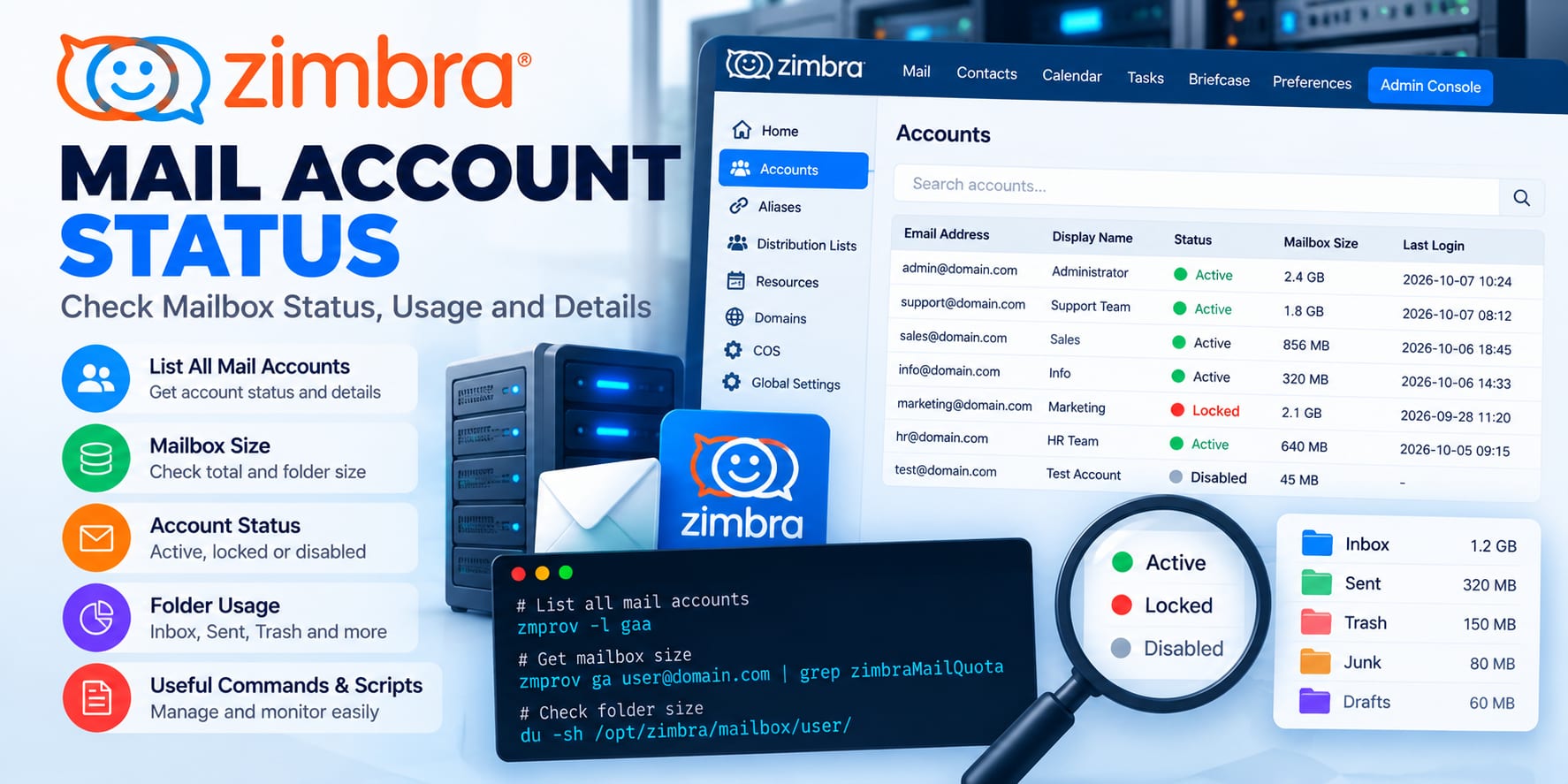
Managing email accounts effectively requires knowing the current status of each mailbox. Zimbra provides different account statuses that indicate whether an email account is available, restricted, or inactive.
Understanding these statuses helps administrators maintain accurate user access records and identify accounts that may require attention.
Account Status | User Login | Email to Mailbox | Email Handling | Typical Use |
|---|---|---|---|---|
Active | ✅ Allowed | ✅ Received | Delivered normally to the mailbox | Normal mailbox operation |
Maintenance | ❌ Disabled | ⏳ Not immediately delivered | Queued at the MTA until the account returns to Active | Backup, import, or mailbox restoration |
Pending | ❌ Disabled | ❌ Not received | Messages are bounced | Newly created account not yet activated |
Locked | ❌ Disabled | ✅ Received | Delivered normally to the mailbox | Suspected compromise or unauthorized use |
Closed | ❌ Disabled | ❌ Not received | Messages are bounced | Soft-deleting an account before permanent deletion |
LockOut | ❌ Disabled | ✅ Received | Delivered normally to the mailbox | Automatic lockout after excessive failed login attempts |
Statuses explained
active
The normal state for a working account. The user can log in through the web client, IMAP, POP3, ActiveSync and other enabled protocols, and mail is delivered. New accounts are active unless you choose another status.
maintenance
Login is disabled and incoming mail is held in the MTA queue rather than delivered or bounced. Once the account returns to active, the queued mail is delivered.
Zimbra uses maintenance during operations such as backup, restore, import and moving a mailbox between servers. You can also set it yourself when you need the mailbox untouched for a short time.
Keep maintenance windows short. Queued messages are retried only until the MTA's queue lifetime expires; after that they bounce back to the sender.
locked
The user cannot log in, but mail is still delivered. Nothing is lost while you investigate.
This is the status for an account you suspect is compromised, or one being used against policy. It stays locked until an administrator changes it back to active.
lockout
Zimbra sets lockout automatically after a set number of consecutive failed logins, according to the password lockout policy in the class of service (COS) or on the account. Login is blocked, mail is still delivered, and the account unlocks itself when the lockout period ends.
Lockout is your built-in brute-force protection. An administrator can end it early by setting the account to active.
pending
The account exists but is not ready to use. Login is disabled and incoming mail is rejected.
Use it to prepare accounts ahead of time, for example a new employee whose mailbox should open on their first day.
closed
Login is disabled and incoming mail is rejected, so senders receive a bounce. The mailbox and its data remain on the server until you delete the account.
Use closed for departed users. It works as a soft delete: you can reopen the account by setting it to active, or delete it once your retention period ends.
Summary
Understanding Zimbra account statuses makes it easier to maintain proper control over organizational email accounts:
Active - Account is available for normal use.
Locked - Account is temporarily restricted.
Closed - Account is disabled.
Maintenance - Account is temporarily restricted for maintenance.
Pending - Account is awaiting activation.
Regularly reviewing these statuses can help organizations maintain accurate account records, improve access management, and support security and compliance activities.



Discussion