Secure SFTP Server Setup on Linux: How to Restrict Users to a Single Folder
This guide explains how to complete a secure SFTP server setup on Linux that restricts a user to a single folder using OpenSSH's ChrootDirectory and internal-sftp. It covers the exact commands, sshd_config settings, tests and hardening steps.
Key takeaways
- A secure SFTP server setup needs no extra software. OpenSSH's internal-sftp and ChrootDirectory do all the work.
- The chroot directory and every parent above it must be owned by root and not writable by anyone else, or SSH refuses the login.
- Users upload to a subfolder they own, such as /srv/external/vendor/abcd/upload, because the jail root itself stays read-only.
- ForceCommand internal-sftp, PermitTTY no and DisableForwarding yes together block shell access, remote commands and tunnelling.
- AllowUsers is a global whitelist. Place it above every Match block and include your admin accounts, or you will lock yourself out.
- Always run sshd -t before reloading, and keep a second admin session open while you test.
- For production, add SSH key authentication, IP restrictions, log forwarding to a SIEM and malware scanning of uploads. These controls support PCI DSS and SOC 2 requirements.
On this page
- Quick answer
- Why a secure SFTP server setup matters
- Prerequisites
- How does SFTP chroot work?
- Secure SFTP server setup: step-by-step guide
- Step 1: Create a dedicated SFTP group
- Step 2: Create the user without a home directory or shell
- Step 3: Set a strong password
- Step 4: Create the directory structure
- Step 5: Lock down ownership for the chroot path
- Step 6: Give the user write access to the upload folder
- Step 7: Create a custom SFTP banner
- Step 8: Configure sshd_config
- Step 9: Validate and reload SSH
- What does each sshd_config directive do?
- How do you test a secure SFTP server setup?
- 1. Confirm SFTP login works
- 2. Confirm the user is jailed
- 3. Confirm uploads work only in the upload folder
- 4. Confirm shell access is blocked
- 5. Confirm the IP restriction
- 6. Inspect the effective configuration
- Hardening tips for production
- Troubleshooting common SFTP chroot errors
All usernames, paths and IP addresses below are placeholders. The IP 203.0.113.25 is from a range reserved for documentation (RFC 5737).
Quick answer
A secure SFTP server setup on Linux restricts each user to a single folder using OpenSSH's built-in internal-sftp together with ChrootDirectory. You create a dedicated group and a user with no shell, build a directory tree owned by root, give the user write access to only one subfolder, and add a Match User block to /etc/ssh/sshd_config. After validating with sshd -t, you reload SSH. The user can then upload files over SFTP, but cannot open a shell, forward ports, or see anything outside their folder.
Why a secure SFTP server setup matters
A secure SFTP server setup becomes essential the moment someone outside your team needs to send you files. It might be a partner dropping daily reports, a customer uploading documents, or a vendor sharing batch exports. Email is not an option, and a public file-sharing link is not something you want to defend in an audit.
SFTP is the natural choice. It runs over SSH, so the traffic is encrypted end to end. The catch is that a regular SSH account gives far more than file transfer. Out of the box, that user can open a shell, browse your file system, and tunnel traffic through your server.
I recently set this up on my own server for exactly that reason: one external party, one upload folder, nothing else. This guide walks through the exact commands I used, explains why each one matters, and covers the mistakes that usually trip people up.
If you work with frameworks such as PCI DSS, SOC 2 or ISO 27001, this setup also maps neatly to least-privilege and access-control requirements.
Prerequisites
Before you begin your secure SFTP server setup, make sure you have the following in place:
A Linux server running OpenSSH (this guide was tested on Ubuntu; Debian works the same way, and RHEL-based systems differ only in the service name).
A user account with
sudoprivileges.A second, already-open SSH session as your admin user. If you make a mistake in
sshd_config, this session is your way back in.The public IP address your SFTP client will connect from, if you want to restrict access by source IP.
Check your OpenSSH version with ssh -V. Any release from the last several years supports every directive used here.
All usernames, paths and IP addresses in this guide are placeholders. The IP 203.0.113.25 is from a range reserved for documentation (RFC 5737).
How does SFTP chroot work?
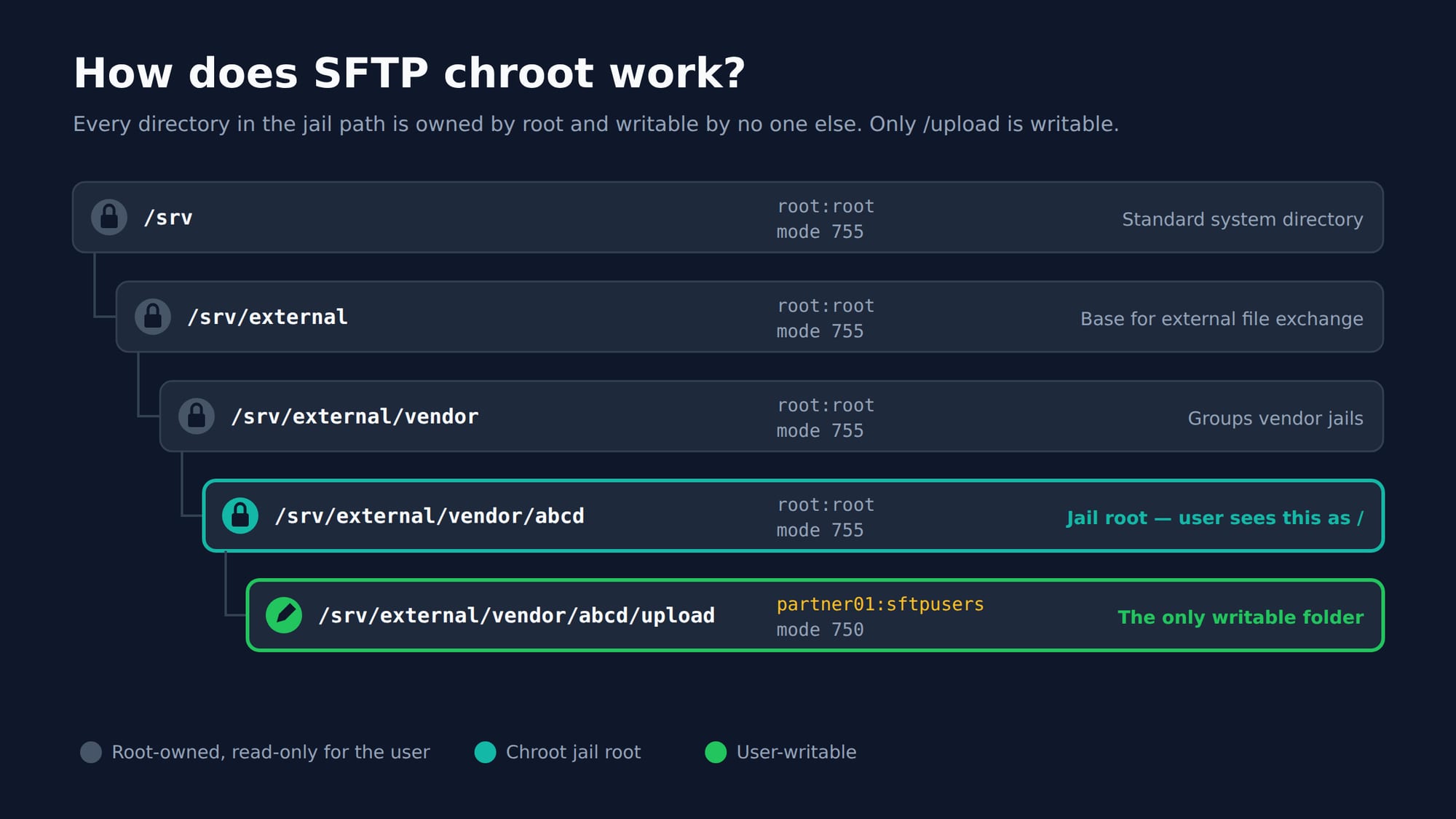
A chroot jail changes what a process sees as the root directory /. When our SFTP user logs in, OpenSSH switches their root to a folder we choose. From their point of view, that folder is the entire server.
Here is the rule behind most failed logins in a secure SFTP server setup: the chroot directory and every directory above it must be owned by root and must not be writable by any other user or group. OpenSSH enforces this strictly. If any directory in the path is writable by someone else, a user could potentially plant files that escape the jail, so SSH refuses the connection.
The sshd_config(5) manual states this requirement directly: every component of the ChrootDirectory path must be a root-owned directory that no other user or group can write to. Built-in SFTP chroot support has been part of OpenSSH since version 4.9 (Arch Wiki).
That creates a small puzzle. If the user cannot write to their chroot root, where do they upload? The answer is a subfolder inside the jail that they do own. That is why our layout looks like this:
Path | Owner:Group | Mode | Purpose |
|---|---|---|---|
| root:root | 755 | Base for all external file exchange |
| root:root | 755 | Groups vendor jails |
| root:root | 755 | Chroot jail (user sees this as |
| partner01:sftpusers | 750 | The only writable folder |
Secure SFTP server setup: step-by-step guide
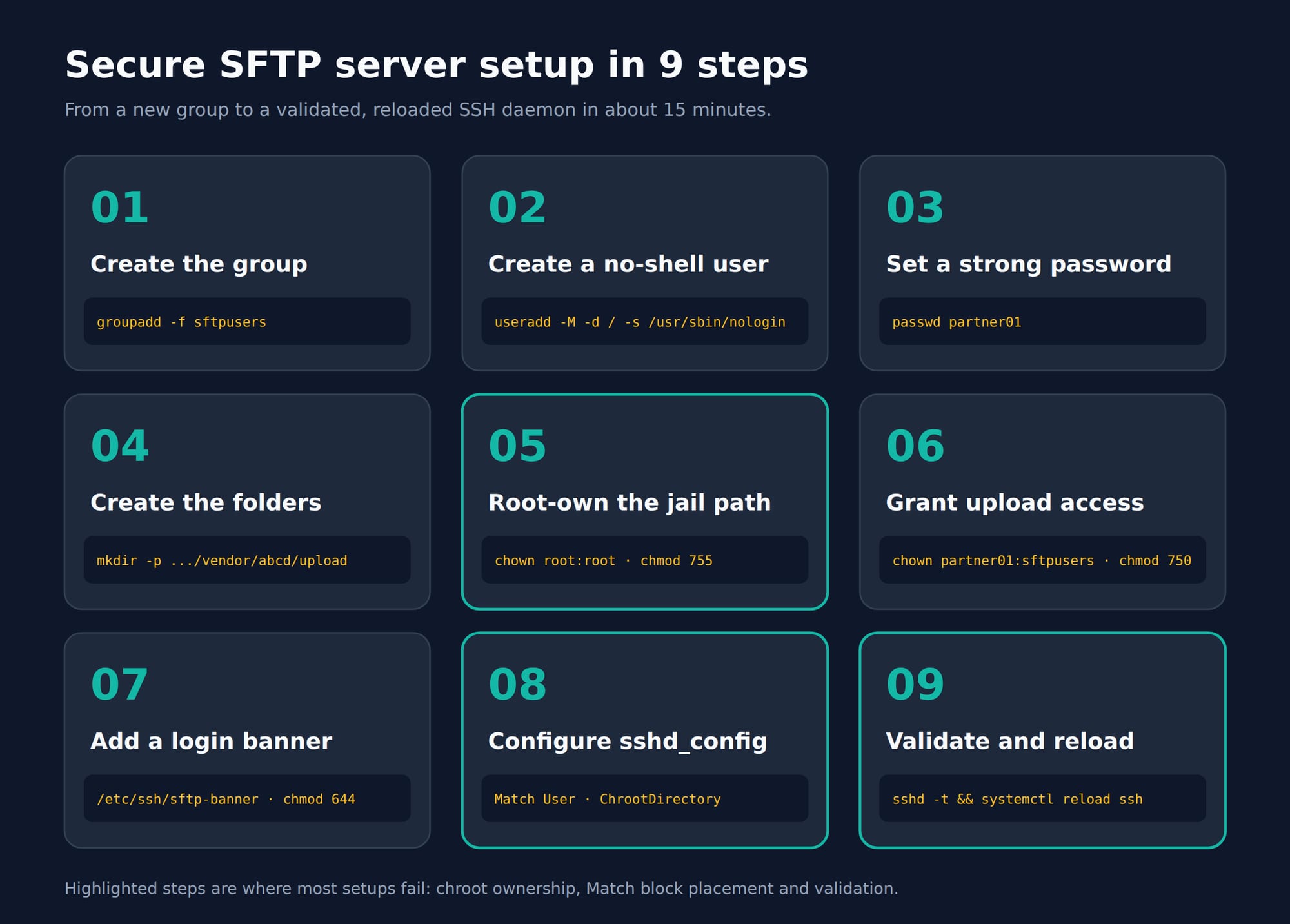
Step 1: Create a dedicated SFTP group
A group gives you one place to manage every SFTP-only user later on. The -f flag means the command will not fail if the group already exists, which keeps it safe to re-run.
sudo groupadd -f sftpusersStep 2: Create the user without a home directory or shell
This user should never log in interactively, so we give them no home directory and a shell that rejects logins.
sudo useradd -M -d / -s /usr/sbin/nologin -g sftpusers partner01Here is what each option does:
-Mskips creating a home directory under/home.-d /sets the home directory to/. After the chroot,/is the jail itself, so the user lands right inside it.-s /usr/sbin/nologinblocks shell access even if the SFTP restriction were ever removed.-g sftpuserssets the primary group.
Step 3: Set a strong password
sudo passwd partner01Use a long, randomly generated password and share it through a secure channel. Better still, switch to SSH key authentication once the setup works (covered in the hardening section).
Step 4: Create the directory structure
sudo mkdir -p /srv/external/vendor/abcd/uploadThe -p flag creates every missing parent along the way.
Step 5: Lock down ownership for the chroot path
This is the step that makes or breaks the setup. Every directory from /srv/external down to the jail must be owned by root with mode 755. On a standard install, /srv and / already meet this requirement.
# The chroot directory itself must be owned by root
sudo chown root:root /srv/external/vendor/abcd
sudo chmod 755 /srv/external/vendor/abcd

# Every parent directory must meet the same requirement
sudo chown root:root /srv/external/vendor
sudo chmod 755 /srv/external/vendor
sudo chown root:root /srv/external
sudo chmod 755 /srv/external
Mode 755 means root can write, and everyone else can only read and traverse. That satisfies OpenSSH's ownership check.
Step 6: Give the user write access to the upload folder
sudo chown partner01:sftpusers /srv/external/vendor/abcd/upload
sudo chmod 750 /srv/external/vendor/abcd/upload
With 750, the user has full control, the group can read, and nobody else can see inside. This is the only place the user can create files.
Step 7: Create a custom SFTP banner
A login banner tells users the system is private and monitored. It is a small touch, but auditors like it, and it supports legal action if someone misuses the access.
sudo nano /etc/ssh/sftp-bannerAdd a short notice, for example:
*******************************************************************
  Authorised access only. This system is monitored and all
  activity is logged. Disconnect now if you are not authorised.
*******************************************************************
Then set safe permissions on the file:
sudo chown root:root /etc/ssh/sftp-banner
sudo chmod 644 /etc/ssh/sftp-banner
Step 8: Configure sshd_config
Always take a backup before editing:
sudo cp /etc/ssh/sshd_config /etc/ssh/sshd_config.bak.$(date +%F)
sudo nano /etc/ssh/sshd_config
First, make sure the SFTP subsystem uses the built-in server. Find the existing Subsystem sftp line and change it to:
Subsystem sftp internal-sftpNext, add the following at the very end of the file:
# Only these accounts may log in via SSH/SFTP
AllowUsers partner01@203.0.113.25 adminuser

# SFTP-only jail for partner01
Match User partner01
    ChrootDirectory /srv/external/vendor/abcd
    ForceCommand internal-sftp -l INFO
    DisableForwarding yes
    PermitTTY no
    AllowTcpForwarding no
    AllowAgentForwarding no
    X11Forwarding no
    Banner /etc/ssh/sftp-banner
Two details matter here. First, AllowUsers must sit above the Match block. Everything after a Match line applies only to that match, until the next Match or the end of the file. Second, the AllowUsers list is a whitelist: any account not listed is denied, including your own admin user. Add every admin account you rely on before you reload, or you will lock yourself out.
Step 9: Validate and reload SSH
sudo sshd -t && sudo systemctl reload sshsshd -t checks the configuration for syntax errors. The && ensures the reload only happens if the test passes. On RHEL, Rocky Linux or AlmaLinux, the service is called sshd instead of ssh.
What does each sshd_config directive do?
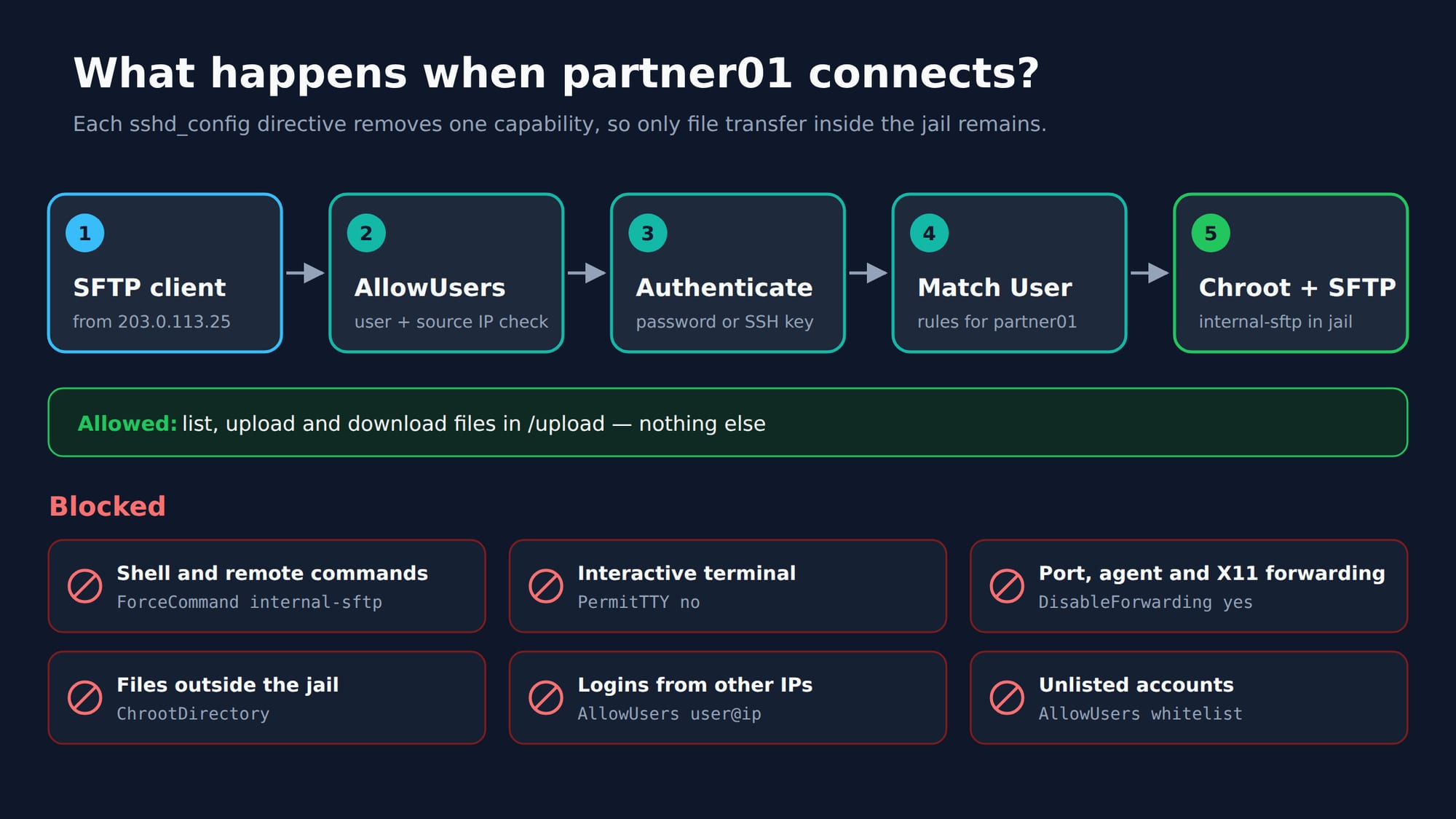
Each directive in the Match User block removes one capability from the account, so that only file transfer inside the jail remains.
Directive | What it does | Why it matters |
|---|---|---|
| Whitelists accounts, optionally by source IP | Denies every account you did not list |
| Applies the settings below it to one user | Keeps the rules from affecting admins |
| Sets the folder the user sees as | Hides the rest of the file system |
| Runs only the SFTP server, whatever the client asks for | Blocks shell and remote commands |
| Logs file operations to syslog | Gives you an audit trail of uploads |
| Turns off all forwarding (TCP, agent, X11, Unix sockets) | Stops the server being used as a tunnel |
| Refuses a terminal | Extra layer against interactive access |
| Disables specific forwarding types | Backs up |
| Shows a notice before authentication | Legal warning and audit evidence |
The overlap is deliberate. OpenSSH added DisableForwarding in version 7.4, released on 19 December 2016 (release notes). However, from 7.4 up to but not including 10.0, the directive did not disable X11 and agent forwarding as documented. This is tracked as CVE-2025-32728, with an NVD CVSS 3.1 base score of 3.8 (AWS ALAS). Setting X11Forwarding no, AllowTcpForwarding no and AllowAgentForwarding no explicitly closes that gap on servers that are not yet patched.
How do you test a secure SFTP server setup?
You test a secure SFTP server setup by trying to break it: log in, try to leave the jail, write outside the upload folder, open a shell and connect from an unlisted IP. Run these checks from the allowed client IP.
1. Confirm SFTP login works
sftp partner01@your-server-ipYou should see your banner, then the sftp> prompt.
2. Confirm the user is jailed
sftp> pwd
Remote working directory: /
sftp> ls
upload
sftp> cd /etc
Couldn't stat remote file: No such file or directory
3. Confirm uploads work only in the upload folder
sftp> put test.txt
remote open("/test.txt"): Permission denied
sftp> cd upload
sftp> put test.txt
The first upload should fail and the second should succeed.
4. Confirm shell access is blocked
ssh partner01@your-server-ipThe connection should close straight away with a message such as "This service allows sftp connections only."
5. Confirm the IP restriction
Try connecting from any other IP address. The login should be rejected.
6. Inspect the effective configuration
This prints the settings sshd will apply for a given connection, which is handy for audits:
sudo sshd -T -C user=partner01,host=client,addr=203.0.113.25 | grep -Ei 'chroot|forcecommand|forwarding|permittty'Hardening tips for production
The steps above give your secure SFTP server setup a solid baseline. For a server that handles sensitive data, I strongly recommend going a few steps further.
Never allow direct root login. It is tempting to add root to AllowUsers for convenience, but it widens your attack surface considerably. Log in as a named admin and use sudo instead, and set PermitRootLogin no in the global section.
Keep OpenSSH patched. SSH is internet-facing, so the version you run matters. CVE-2024-6387 (regreSSHion), reported by Qualys on 1 July 2024, allows unauthenticated remote code execution on glibc-based Linux. It affects OpenSSH 8.5p1 to 9.7p1, carries a CVSS score of 8.1 and is fixed in 9.8p1 (Unit 42). Distributions often backport fixes, so check your vendor's advisory rather than relying on the version number alone.
Switch to SSH key authentication. Passwords can be guessed, phished or reused. Create the folder /etc/ssh/authorized_keys/, store the partner's public key at /etc/ssh/authorized_keys/partner01 (owned by root, mode 644), and add these lines inside the Match block:
    AuthorizedKeysFile /etc/ssh/authorized_keys/%u
    PasswordAuthentication no
The keys live outside the jail, so the user cannot modify them.
Add rate limiting. OpenSSH defaults to MaxAuthTries 6 and LoginGraceTime 2m (default sshd_config). Lowering these to MaxAuthTries 3 and LoginGraceTime 30, and adding Fail2ban, slows down brute-force attempts considerably.
Firewall the SSH port. Allowing port 22 only from known IPs at the firewall level gives you a second barrier if sshd_config is ever misconfigured.
Forward the logs. The -l INFO flag writes every upload, download and deletion to the auth log. Ship those logs to your SIEM so you have a tamper-resistant audit trail. This supports SOC 2 monitoring controls and PCI DSS Requirement 10.5.1, which requires at least 12 months of audit log history with the latest three months immediately available (Microsoft Learn).
Scan and clean uploaded files. Treat everything a third party uploads as untrusted. Run malware scanning on the upload folder and set a retention policy so files do not pile up.
Mount the data with restrictive options. If /srv/external sits on its own partition, mount it with noexec,nosuid,nodev so uploaded files cannot be executed.
Review access regularly. When a partnership ends, lock the account straight away with sudo usermod -L partner01 and remove it from AllowUsers.
Troubleshooting common SFTP chroot errors
When a secure SFTP server setup goes wrong, the server log almost always tells you why. Watch it live while you retry the login:
sudo journalctl -u ssh -f
# or, on older systems
sudo tail -f /var/log/auth.log
Symptom | Likely cause | Fix |
|---|---|---|
| A directory in the chroot path is not root-owned or is group/world-writable | Re-run Step 5 and check each level with |
Client shows | Usually the same ownership problem | Check the log; fix permissions |
| User is writing to | Run |
Admin account suddenly locked out | Admin missing from | Use your open session, add the admin, reload |
| Typo, or a global directive placed after | Move global settings above all |
Banner does not appear | Wrong path or the client hides banners | Check the path; try |
Login works from anywhere | IP restriction not applied | Confirm the |
A quick way to check the whole chroot path in one go:
namei -l /srv/external/vendor/abcd/upload# namei -l /srv/external/vendor/abcd/upload - result of this command below
f: /srv/external/vendor/abcd/upload
drwxr-xr-x root root /
drwxr-xr-x root root srv
drwxr-xr-x root root external
drwxr-xr-x root root vendor
drwxr-xr-x root root abcd
drwxr-x--- partner01 sftpusers upload
Questions and answers
What is the difference between SFTP and FTPS?
SFTP runs over SSH on a single port, usually 22. FTPS is classic FTP wrapped in TLS and needs extra ports for data transfer. SFTP is simpler to firewall and is already installed on almost every Linux server.
Why can't the SFTP user write to the chroot directory?
OpenSSH requires the chroot directory and all its parents to be owned by root and not writable by others. This stops a user from manipulating the jail to escape it. The user writes to a subfolder they own instead.
What does internal-sftp do?
internal-sftp is an SFTP server built into the OpenSSH daemon. Unlike the external sftp-server binary, it needs no libraries or binaries inside the chroot, so the jail can stay empty apart from the data folders.
How do I restrict an SFTP user to a specific IP address?
Add the user to AllowUsers in the form username@ip-address. You can also use Match User username Address ip-address for more complex rules, and back it up with a firewall rule.
Can I add more SFTP users with separate folders?
Yes. Repeat Steps 2 to 6 for each user with their own jail, then add a separate Match User block for each. For many users, use Match Group sftpusers with ChrootDirectory /srv/external/vendor/%u so each user is jailed in a folder named after them.
Is a chrooted SFTP server PCI DSS compliant?
Chroot on its own does not make a system compliant, but it supports several requirements. It enforces least privilege, keeps transfers encrypted, and with logging enabled it provides an audit trail. You still need strong authentication, log monitoring and regular access reviews.
Which port does SFTP use, and should I change it?
SFTP uses the SSH port, which is 22 by default. Moving it to another port with the Port directive reduces automated scan noise in your logs, but it is not a real security control. Firewall rules and key-based authentication matter far more.
How do I give the SFTP user a read-only download folder?
Create a second folder inside the jail, for example /srv/external/vendor/abcd/download, and keep it owned by root:root with mode 755. The user can list and download files from it but cannot change anything there.
How can I stop the SFTP user from deleting or renaming files?
Add the -P option to ForceCommand to deny specific SFTP requests, for example ForceCommand internal-sftp -l INFO -P remove,rmdir,rename. Run /usr/lib/openssh/sftp-server -Q requests to list the request names your OpenSSH version supports. The path may differ on non-Debian systems.
How do I control the permissions of uploaded files?
Set a umask with the -u option, for example ForceCommand internal-sftp -l INFO -u 0027. New files are then created without any access for other users, which keeps uploads private on a shared server.
Do I need to copy binaries or libraries into the chroot?
No. Because internal-sftp runs inside the SSH daemon itself, the jail only needs the data folders. You would need binaries and libraries only if you allowed a real shell inside the chroot, which this setup deliberately avoids.
How do I see who uploaded or downloaded a file?
With -l INFO enabled, every open, read, write and remove is logged with the username and file path. Check journalctl -u ssh or /var/log/auth.log, depending on your distribution. Current OpenSSH versions do not need a log socket inside the jail.
Will this configuration affect my other SSH users?
The Match User block applies only to the named user, so admins keep normal SSH access. The AllowUsers line is global, however. Any account not listed there is denied, so review it carefully before reloading.
Can I require both an SSH key and a password?
Yes. Add AuthenticationMethods publickey,password inside the Match block. The user must present a valid key first and then enter the password, which gives you two independent factors for the login.
How do I safely remove an SFTP user?
First lock the account with sudo usermod -L partner01 and remove it from AllowUsers. Archive or securely delete the files in the jail according to your retention policy. Finally, remove the account with sudo userdel partner01 and delete the matching Match block.
Get notified about new articles
Allow browser notifications and you will hear about new articles and important updates.

Discussion